

Why Connected Device Awareness Matters
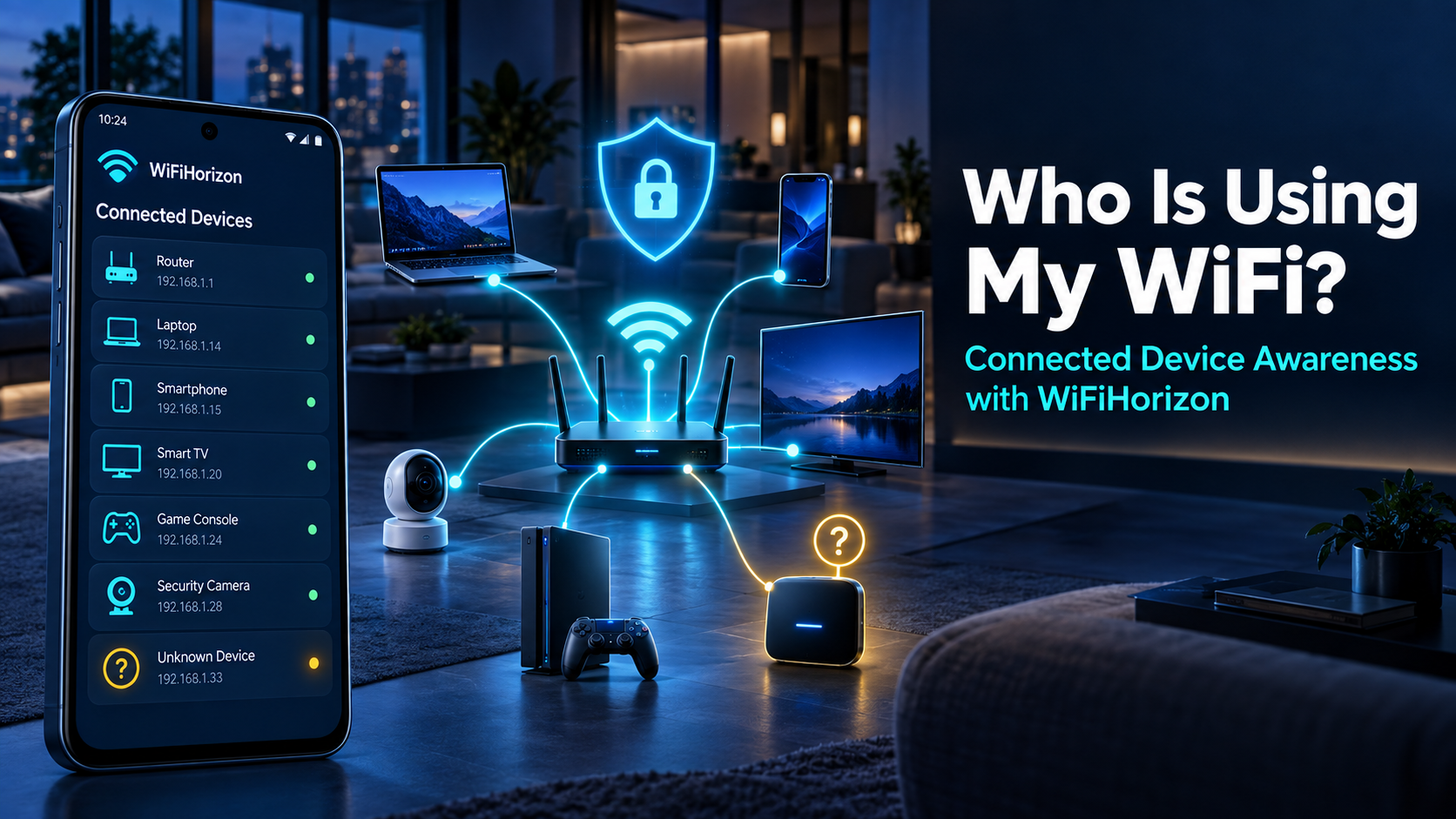
Modern WiFi networks support far more than phones and laptops. Smart televisions, tablets, game consoles, cameras, speakers, printers, routers and home-automation products may all share the same connection. As the device list grows, it becomes harder to remember what belongs on the network and easier to overlook an unfamiliar connection. WiFiHorizon: AI WiFi Analyzer includes a connected-device scanner that helps Android users view devices detected on the local WiFi network. The feature is designed for awareness: it provides available device information so users can review what is connected recognize common equipment and investigate entries they do not understand.
How the WiFiHorizon Device Scanner Helps
When the phone is connected to a local WiFi network, WiFiHorizon can scan for devices that are visible under the network's configuration and Android's restrictions. Detected entries may correspond to smartphones, computers, tablets, smart TVs, routers and other connected equipment. This creates a more convenient inventory than checking devices one by one around the home or office. The amount of information available can vary. Router settings, privacy controls, device permissions, network isolation and operating-system restrictions may limit names or identifying details. A generic or incomplete label does not automatically mean a device is dangerous. It means the entry may require comparison with the router's client list or the hardware currently in use.
What to Do When You See an Unfamiliar Device
First, avoid assuming that every unfamiliar name represents an intruder. Many legitimate products use manufacturer names, model codes, randomized addresses or generic labels. Compare the entry with smart devices, streaming equipment and older phones that may still be connected. Temporarily disconnecting a suspected device can help determine which entry disappears from the list. If the device remains unexplained, open the router's administration interface using the manufacturer's official instructions. Review the connected-client list, change the WiFi password to a strong and unique passphrase, and reconnect only trusted equipment. Enable a modern security mode supported by the router and devices, keep router firmware updated, disable features that are not required and consider a separate guest network for visitors or smart-home products.
Detect Open or Potentially Insecure Networks
Connected-device visibility is only one part of network awareness. WiFiHorizon can also identify open or potentially insecure networks. An open network may expose traffic to greater risk because access is not protected in the same way as a properly secured private network. Users should be cautious with sensitive activities when connected to public or unfamiliar WiFi. For a home or office network, security begins with the router configuration. A strong password, suitable encryption, current firmware and controlled administrative access provide a better foundation than relying on device scanning alone. WiFiHorizon highlights signals that deserve attention, while the router remains the place where access is ultimately controlled.
Combine Security Awareness with Network Health
An unfamiliar device may not be the only reason a network feels slow. Weak coverage, congestion and poor placement can produce similar symptoms. WiFiHorizon combines connected-device discovery with signal monitoring, speed testing, channel analysis and a WiFi health score. This broader view helps users avoid blaming a device when the underlying problem is actually interference or poor coverage. The AI WiFi Assistant can explain scan results and suggest practical checks in everyday language. Users can ask what a weak reading means, why a device may not have a recognizable name or which steps can improve general WiFi security awareness. New users receive up to five free AI chats before subscription access is required.
Build a Regular WiFi Review Habit
Run a device scan after installing new smart equipment, changing the router password or allowing guests to connect. Keep a simple list of important devices and compare it with future scan results. Periodic reviews make unusual changes easier to notice and reduce the confusion created by a large, constantly changing device list. WiFiHorizon offers a practical way to answer the everyday question, who is using my WiFi? Its value comes from combining local-network visibility with understandable security signals and broader performance tools. Detection results should be interpreted carefully, but they can provide a useful starting point for a more organized and secure network.
Download WiFiHorizon
WiFiHorizon is available for Android through Google Play. Download the app to analyze signal strength, test performance, explore coverage, review nearby networks, inspect connected devices and receive practical AI-powered WiFi guidance.
Download WiFiHorizon on Google Play:
About SpeckPro Digital
WiFiHorizon: AI WiFi Analyzer is designed, developed and published by SpeckPro Digital. SpeckPro Digital creates practical digital products that make technology easier to understand and use.