
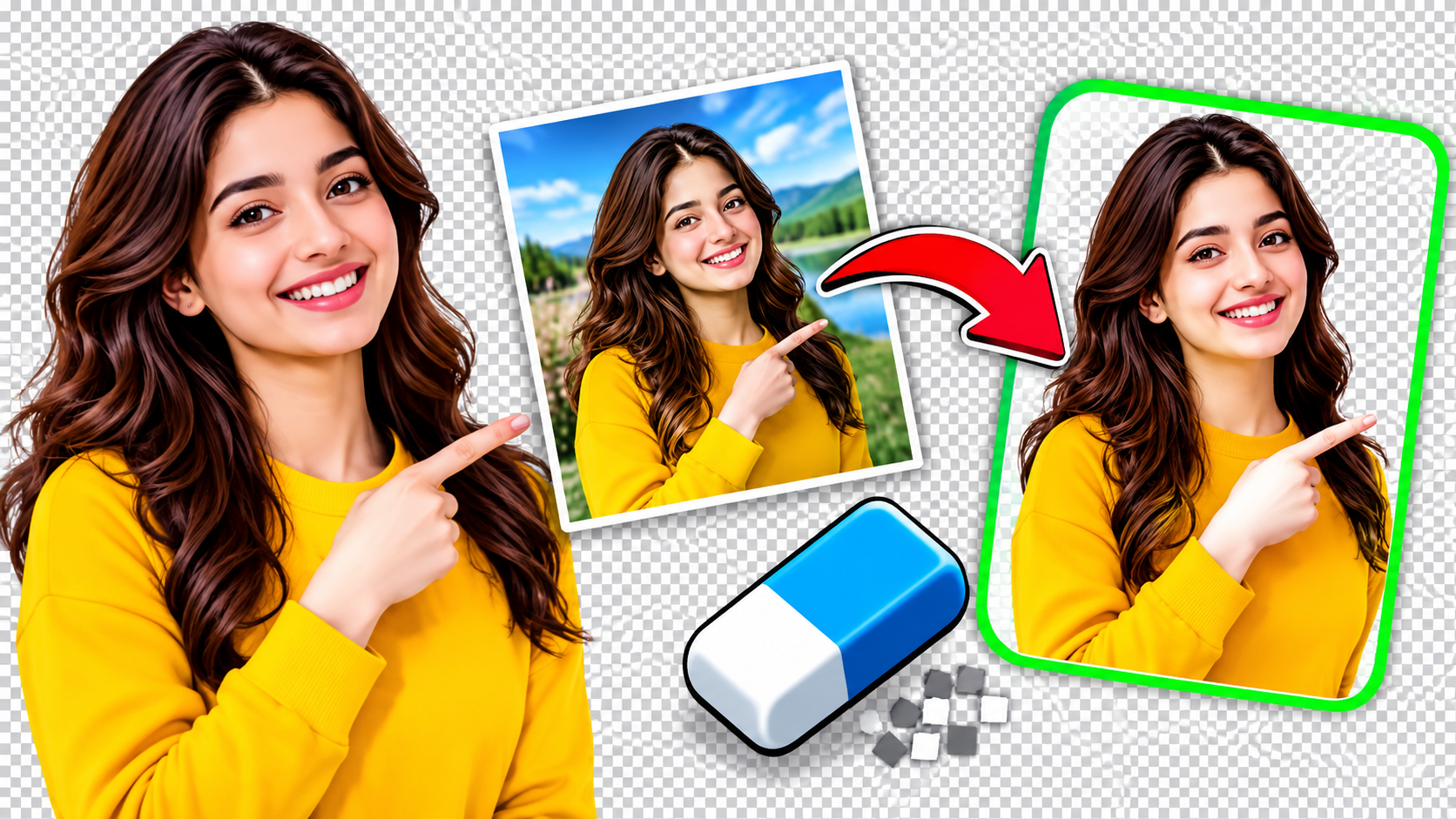
Removing a background is one of the most requested photo edits, whether you are preparing a product photo, a logo, a signature or a profile picture. You can do it for free in your browser with the Entertainment Couch background remover, which cuts out plain backgrounds in one click and never uploads your photo.
Quick answer: Open the free background remover, load your image and press Remove background. The editor makes the backdrop transparent, and you can then export a transparent PNG or WebP, or replace the background with a solid colour or another photo.
How does the free background remover work?
The tool looks at the colours around the edges of your photo, which are usually the background, and makes every connected pixel of that colour transparent. The edge of the cut-out is softened slightly so it blends naturally onto a new background. Because this happens with classic image processing rather than AI, it runs entirely on your device. That makes it fast, private and free, with no model to download and no server involved. It handles gradients and two-tone backdrops too, which covers most studio and product shots.
Step-by-step: remove a background in under a minute
- Open the image editor's Background tool and drop in your photo.
- Press Remove background. A message tells you what share of the photo was removed.
- Refine the result if needed. Use the Magic eraser to click away leftover areas, and the Restore brush to paint back anything removed by mistake.
- Choose what goes behind your subject: transparency, a solid colour or another photo.
- Press Export and choose PNG or WebP to keep transparency. JPG does not support transparent areas.
Which settings help you get a cleaner cut-out?
Two sliders give you control over tricky photos:
- Tolerance sets how different a colour can be from the background and still be removed. Raise it for shadows and soft gradients; lower it if parts of your subject disappear.
- Edge softness feathers the edge of the cut-out so it does not look harsh when placed on a new background.
You can also switch the magic eraser between removing only the connected area you click or every matching colour in the image, which is useful for gaps between arms or the inside of letters in a logo.
What kinds of images work best?
Colour-based removal works very well on:
- Product photos shot on white, grey or coloured paper
- Logos and icons on a flat background
- Scanned signatures and documents
- Portraits taken against a plain wall or studio backdrop
It is less suited to busy outdoor scenes, hair and fur, where the subject and background share similar colours. AI segmentation handles those better, but it requires a large download or a server, which would break the no-upload promise. For these photos, use the erase and restore brushes to finish the job by hand.
Can you replace the background with a new colour or photo?
Yes. In the Background tool, choose With a colour and click any swatch, or choose With a photo to place a different image behind your subject. If the photo still has its original background, the editor cuts it out first and then adds the new background in one step. Picking another background later swaps it instead of stacking a second layer, so you can try several looks quickly.
Is it safe to remove backgrounds from personal photos online?
With this tool, yes. Your image is opened, edited and saved inside your browser and is never sent to Entertainment Couch or anyone else. Downloads also exclude EXIF data such as GPS location. You can read more in the editor's privacy section.
Key takeaways
- You can remove plain backgrounds for free, with no account and no upload.
- Export as PNG or WebP to keep a transparent background.
- Tolerance, edge softness and the magic eraser help with harder photos.
-Busy outdoor backgrounds may need manual touch-ups with the brushes.