

Why this problem matters
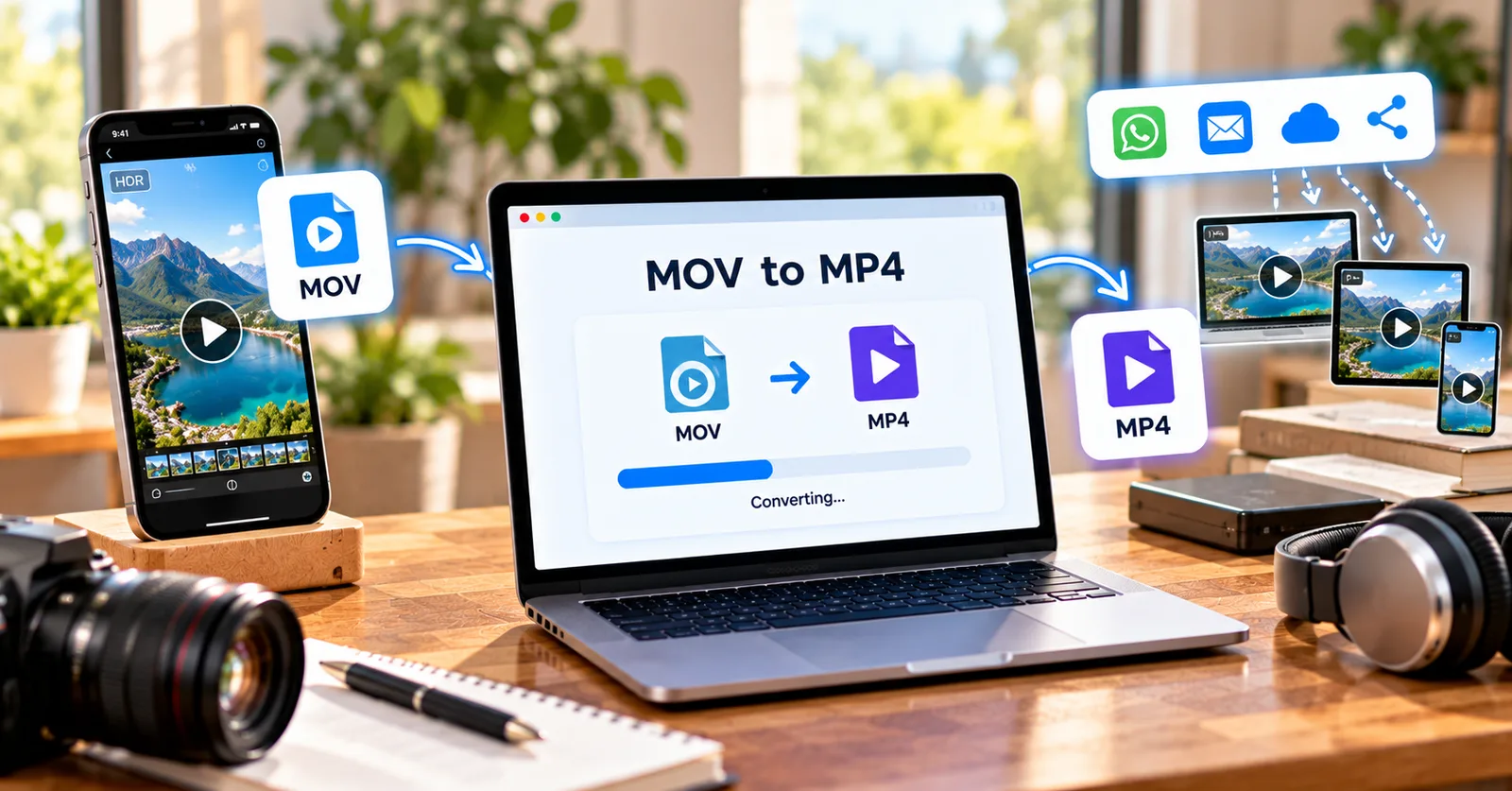
A video can play perfectly on the phone that recorded it and still cause trouble in a workplace portal, browser, or client review workflow. The filename extension is only part of the story: a container such as MOV or MP4 holds video and audio streams encoded with particular codecs.
Plan the job before opening an editor
First identify the recipient’s requirements. If a client explicitly requests MP4 with H.264, simply renaming .mov to .mp4 does not convert anything. The video must be exported or encoded in a compatible combination. Also check the destination’s size limit and whether it needs a horizontal or vertical frame.
Understand the trade-offs
MP4 with H.264 is a practical compatibility default for many common workflows, although no format works everywhere. Re-encoding may slightly change image quality, file size, metadata, or color. Keep the original MOV as an archive, especially for footage you may edit later.
A practical quality-control checklist
For a school presentation or a freelance delivery, test the MP4 in the actual browser or player your recipient will use. Check sound synchronization, orientation, and whether the last few seconds are intact. If the source is already compatible, unnecessary conversion can waste time.
Put the workflow into practice
Try ClipForge’s online format converter to prepare a compatible MP4 from a local video up to 100 MB. The tool processes the selected file in the browser; conversion speed depends on the device and the clip. Try ClipForge free online video tools. Always keep your original recording so you can return to it if the result does not meet your needs.
Mistakes to avoid when preparing a video
The most common mistake is choosing settings before defining the destination. A smaller file that looks poor, a portrait video that loses the main subject, or a converted file that does not play for its intended audience has not solved the underlying problem. Start with the recipient’s requirements, make one controlled change, and evaluate the result in the environment where it will actually be used.
Another mistake is skipping a final playback test. Inspect audio as well as picture, check the beginning and end, and confirm that text remains legible. File size, dimensions, and extensions are useful indicators, but they do not replace watching the finished output. For important projects, save both the source and a clearly named delivery copy.
How to make the process repeatable
Create a simple note with the settings that worked for your most common destination. Record the preferred format, orientation, dimensions, approximate size limit, and final review steps. The next time you prepare a similar video, you can start from a proven workflow rather than experimenting from scratch. This matters especially when several team members publish to the same channel or send files to the same client.
For longer or high-resolution recordings, plan around device resources. Browser-based editing uses local processing power and memory; even a supported file can be slow on an older phone or a busy laptop. Close unnecessary tabs, process shorter clips when possible, and avoid refreshing the page while a job is running. ClipForge accepts inputs up to 100 MB, so larger projects require a different workflow.
A quick real-world example
Imagine you have just finished a short recording and need to share it before a deadline. First, open the destination requirements and write down the allowed file type, maximum file size, and preferred orientation. Next, watch the original recording once and identify what must remain visible or audible. Apply only the adjustment that addresses the actual obstacle, then save a separate copy with a meaningful filename. Finally, open that copy outside the editing page and confirm that it works. This sequence is useful because it turns a vague editing task into a clear decision with a verifiable outcome. It also helps prevent last-minute rework, especially when another person will review the file on a different device.