

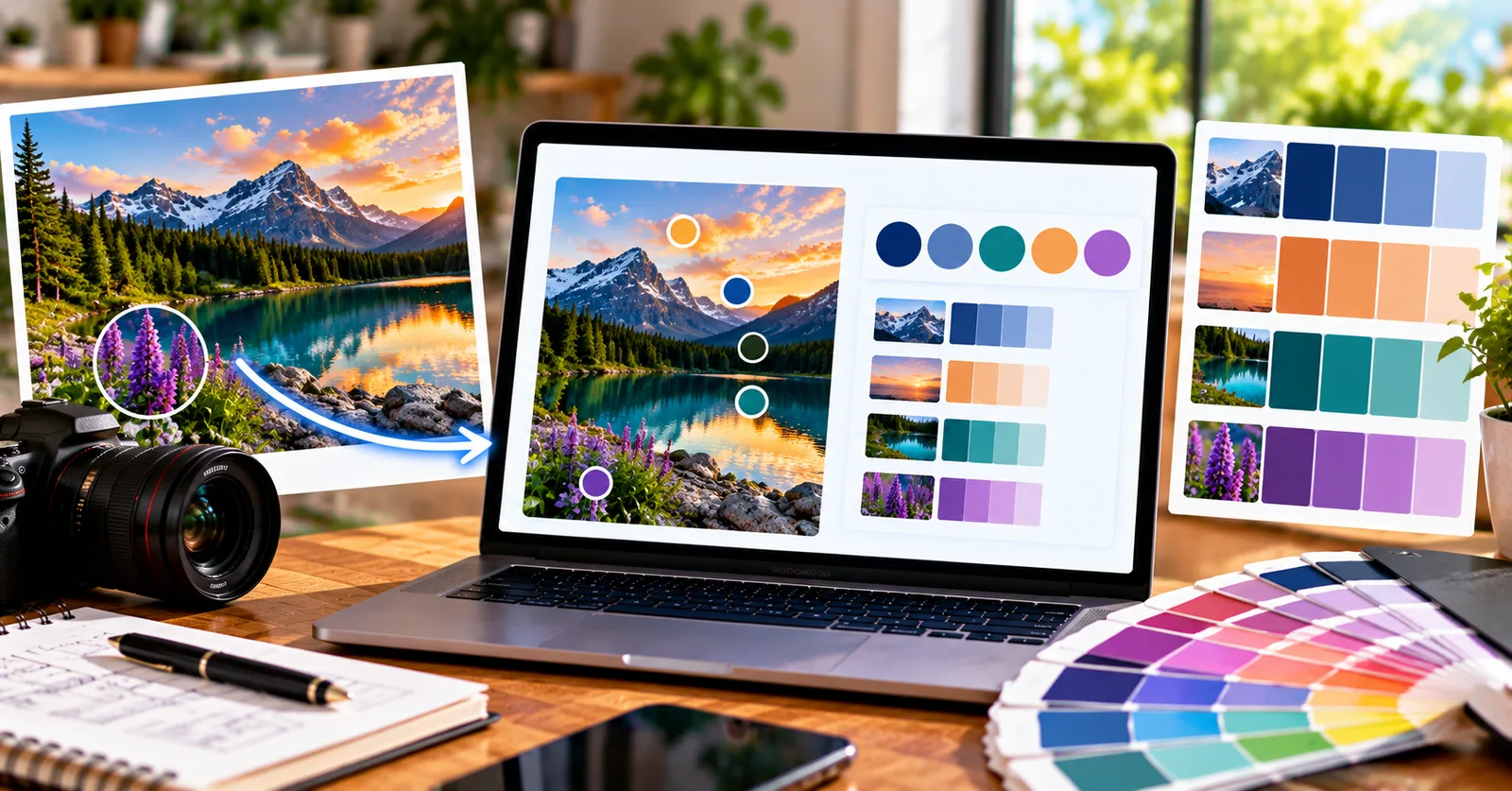
Choosing colors sounds simple until a real project needs to look good on a phone, a laptop, and a printed page. For designers and creators, the challenge is not merely finding an attractive shade. It is building a set of colors that makes information easy to understand, gives important actions enough emphasis, and stays consistent across the work. A color palette generator from image can shorten the experimentation stage, but thoughtful decisions still matter. This guide explains a practical process you can use before your next image-based design project.
Choose an image that reflects the right mood
A photograph can communicate a mood faster than a list of color names. A cozy interior photo may suggest muted creams and terracotta; a coastal scene may suggest blue-gray and sand. But not every prominent color belongs in the final palette. Choose an image relevant to the audience, and avoid using a busy picture with wildly different lighting unless that variety is intentional.
Before opening a color tool, write down the project constraints. Identify the intended audience, where the design will appear, whether there is an existing logo or style guide, and which information must be read quickly. Look at the design in grayscale as well: if the hierarchy disappears when hue is removed, the page may rely too heavily on color. Color should reinforce structure rather than replace it.
Extract, edit, and assign color roles
Pull dominant colors from the image, then identify which are practical for backgrounds, body text, buttons, and illustrations. Some extracted tones will be too light for text or too similar to each other. Modify those rather than copying the entire extracted set unchanged. Check the resulting combinations on the actual layout and save the final HEX values for reuse.
A useful workflow is to make a rough draft first, test only two or three candidate palettes, and compare them side by side. Place each candidate on the same layout instead of judging isolated swatches. Check headings, body copy, buttons, captions, and backgrounds. If a color looks impressive as a large block but distracts from the main message, reduce its area or saturation. This small evaluation step often saves more time than generating endless alternatives.
Try the colors in a real project
For an event invitation inspired by autumn leaves, an extracted gold can become a small highlight while charcoal provides readable text and cream provides breathing room. The photo supplies direction; the designer still makes the usability decisions.
When you are ready to test your own combination, open Prizm Color Palette Studio and use its color picker, harmony tools, image extraction, contrast checker, or shade ramps as appropriate. You can copy the resulting values and export palettes for later use. The useful next step is not simply generating colors: it is checking how they perform in the actual design.
Common mistakes to avoid
One mistake is selecting colors only because they are fashionable. Trends can be useful references, but an audience may expect a different visual tone. Another mistake is using too many equally saturated accents, which makes everything compete for attention. A third is assuming a high-contrast-looking combination passes accessibility standards without checking it. Finally, do not forget the handoff: if the approved palette exists only in someone’s memory, later pages and campaigns will drift.
Instead, define a few roles for your palette and test them consistently. Use a neutral background where appropriate, reserve the strongest accent for a meaningful purpose, and check smaller text at its actual size. Document the HEX codes and name the colors by function, such as primary action or muted background, rather than only by appearance. This makes future edits easier for collaborators.
A practical five-minute review
Ask five questions before publishing: Can the main message be read without effort? Is the most important action visually distinct? Do repeated components use the same values? Are color differences backed up by labels or other cues when necessary? And can another person reproduce the palette from the values you saved? If any answer is no, revisit the design before exporting the final files.
Final takeaway
The best color palette generator from image workflow combines creative exploration with clear rules. Start with the problem, choose a restrained set of colors, test real examples, and check readability. With that approach, a color tool becomes a way to finish stronger work faster—not just a place to collect attractive swatches.