

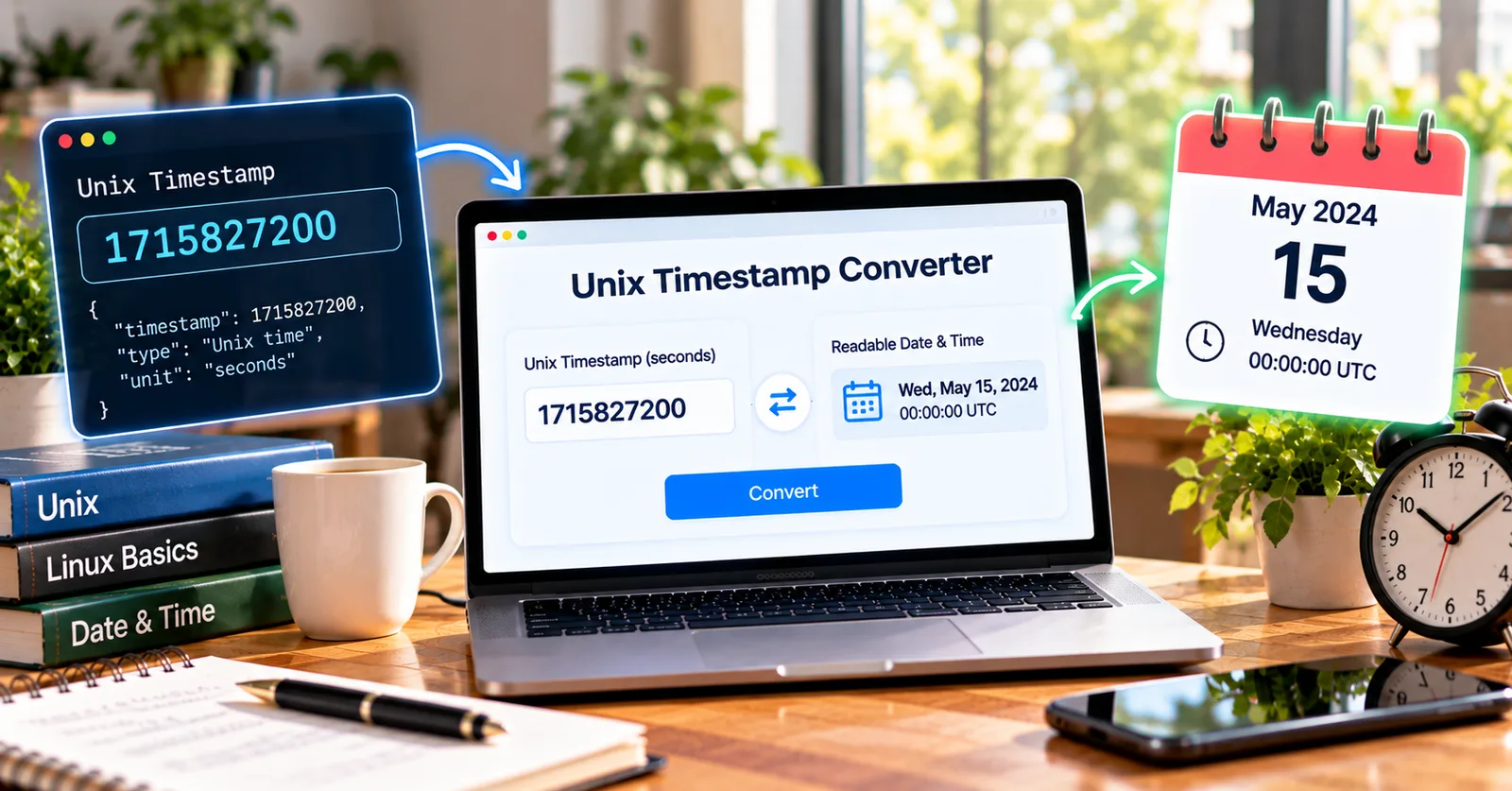
Turn a mysterious number into a useful calendar time
An order export, error report, or analytics file may contain a value like 1704067200 instead of a date. That is difficult to interpret during a busy workday. Converting the value into a familiar date and time helps you understand when something happened.
The concept behind the number
A timestamp in seconds counts from the Unix epoch; a millisecond timestamp counts the same interval in thousandths. For example, 1704067200000 milliseconds represents the same instant as 1704067200 seconds. Treating one as the other produces a wildly incorrect date.
Why it matters in everyday work
For a reliable conversion, check the original field documentation, inspect the number of digits, and confirm whether the displayed output uses UTC or your local timezone. A calendar display may change the hour or even the day without changing the underlying instant.
A practical way to check your result
If a payment appears to have happened on the wrong day, convert its raw timestamp first. Then check the timezone setting of the dashboard. A UTC event shortly after midnight can display as the previous evening in parts of the United States.
Try it while the number is in front of you: open the free Epochly Unix timestamp converter. Paste the timestamp or choose a local date and time, review the result, and verify the unit before using it in your workflow. Epochly runs conversions in your browser and automatically detects common seconds and milliseconds inputs.
Where this becomes useful
The real value of a converter is not the arithmetic alone. It is the ability to check an assumption before that assumption spreads into a spreadsheet, report, support reply, or software release. People often copy a value from one system to another without noticing that the two systems use different conventions. A quick verification step makes the workflow more dependable.
A repeatable quality-check routine
Keep the source value alongside the converted result, note the expected timezone, and compare with a known event. If you are publishing a report, explain whether the displayed time is UTC or local. If you are writing code, use explicit variable names that include the unit, such as createdAtSeconds or createdAtMilliseconds. That small habit can prevent repeated confusion.
Common mistakes to avoid
Do not infer a timezone from a raw Unix number. Do not treat a 13-digit value as seconds simply because it is numeric. Do not assume daylight saving time uses a fixed offset all year. Finally, do not paste private production secrets into random websites; prefer tools with clearly explained processing behavior and follow your organization’s data-handling rules.
How to make the result actionable
After checking the conversion, use the date in the task that prompted the question. For a support case, update the event timeline. For a software issue, add a regression test. For a report, label the timezone. For an integration, verify the receiving field’s unit. The best outcome is not just a readable date; it is a decision supported by a correctly interpreted moment.
A realistic example
Suppose a colleague sends a timestamp from a report and asks whether an action happened before a deadline. Instead of guessing from the digits, first convert the value and record the timezone used for the display. Next, convert the deadline into the same reference. Only then compare the two instants. This process is particularly important for teams working across US timezones or with overseas customers, because the calendar day can differ even when the underlying event is identical.
Final takeaway
Timestamp conversion is a small task with outsized consequences when it is skipped. Use a clear source value, a documented unit, and an explicit timezone to make the output meaningful. A quick browser-based conversion can save time and reduce avoidable misunderstandings, but the final interpretation should always be checked against the system that produced the data.