

Why this problem matters
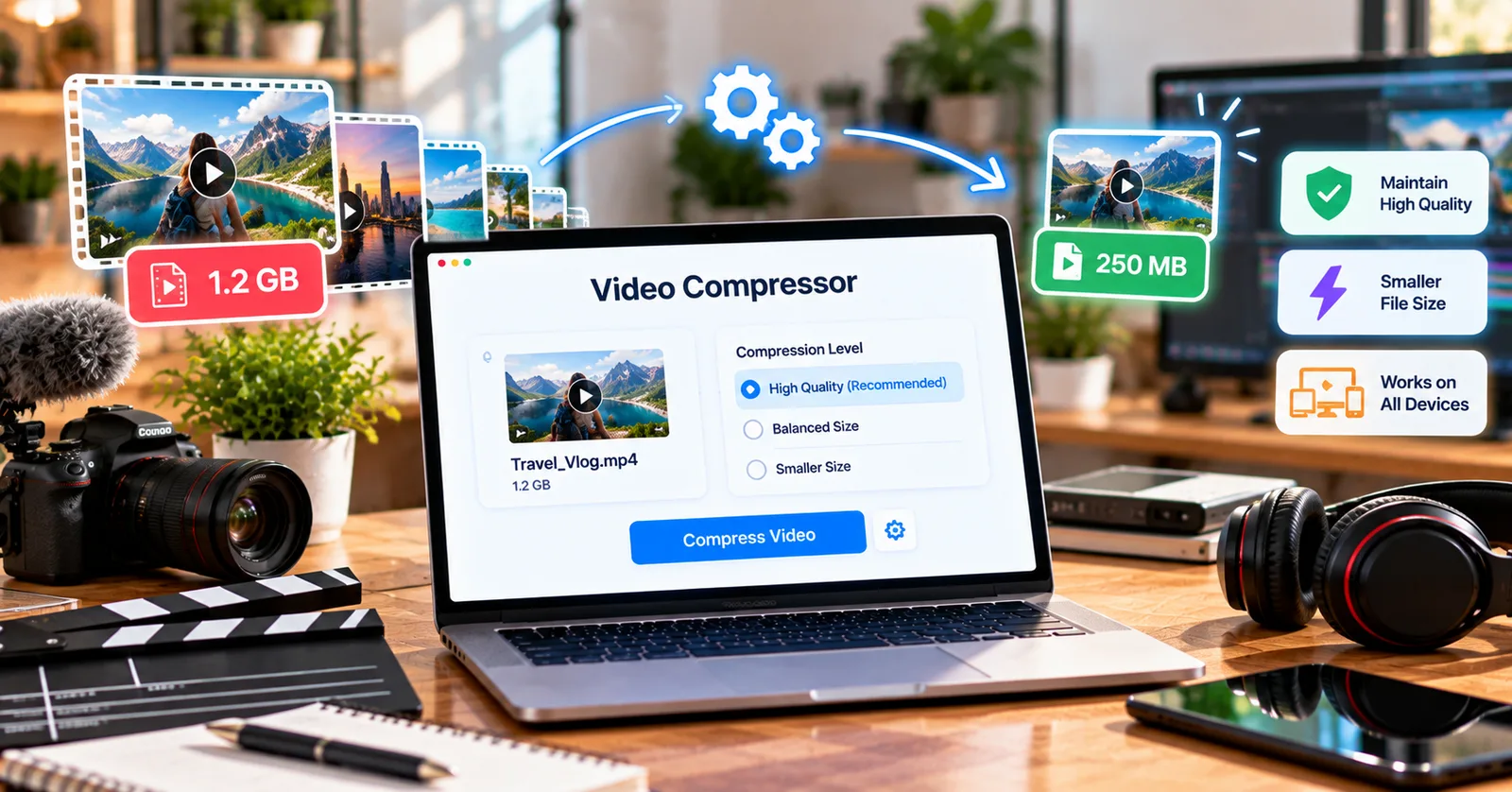
Email attachments, course submissions, and social uploads often fail because a clip is larger than the destination accepts. Compression solves a delivery problem, not just a storage problem.
Plan the job before opening an editor
Start with the destination limit and keep the original file. A 90 MB recording that needs to fit a 25 MB limit requires a different approach from a 20 MB clip that only needs a modest reduction. Shorten unnecessary footage before lowering quality; removing 30 seconds from a two-minute video can save space without softening the remaining frames.
Understand the trade-offs
Resolution controls the number of pixels, while bitrate controls how much data the encoder spends representing motion and detail. Fast action, moving leaves, and confetti need more data than a static presentation. Lowering both resolution and bitrate aggressively may produce smeared faces or blocky backgrounds.
A practical quality-control checklist
Use a representative 10-second test containing movement, faces, and text. Compare the result at normal viewing size, then compress the full file. A smaller file is not automatically better if captions become unreadable or product details disappear.
Put the workflow into practice
Open the free video compressor in ClipForge, choose a file of up to 100 MB, select compression options, and inspect the resulting clip before sharing it. Processing runs in your browser rather than uploading the video to a remote conversion server. Try ClipForge free online video tools. Always keep your original recording so you can return to it if the result does not meet your needs.
Mistakes to avoid when preparing a video
The most common mistake is choosing settings before defining the destination. A smaller file that looks poor, a portrait video that loses the main subject, or a converted file that does not play for its intended audience has not solved the underlying problem. Start with the recipient’s requirements, make one controlled change, and evaluate the result in the environment where it will actually be used.
Another mistake is skipping a final playback test. Inspect audio as well as picture, check the beginning and end, and confirm that text remains legible. File size, dimensions, and extensions are useful indicators, but they do not replace watching the finished output. For important projects, save both the source and a clearly named delivery copy.
How to make the process repeatable
Create a simple note with the settings that worked for your most common destination. Record the preferred format, orientation, dimensions, approximate size limit, and final review steps. The next time you prepare a similar video, you can start from a proven workflow rather than experimenting from scratch. This matters especially when several team members publish to the same channel or send files to the same client.
For longer or high-resolution recordings, plan around device resources. Browser-based editing uses local processing power and memory; even a supported file can be slow on an older phone or a busy laptop. Close unnecessary tabs, process shorter clips when possible, and avoid refreshing the page while a job is running. ClipForge accepts inputs up to 100 MB, so larger projects require a different workflow.
A quick real-world example
Imagine you have just finished a short recording and need to share it before a deadline. First, open the destination requirements and write down the allowed file type, maximum file size, and preferred orientation. Next, watch the original recording once and identify what must remain visible or audible. Apply only the adjustment that addresses the actual obstacle, then save a separate copy with a meaningful filename. Finally, open that copy outside the editing page and confirm that it works. This sequence is useful because it turns a vague editing task into a clear decision with a verifiable outcome. It also helps prevent last-minute rework, especially when another person will review the file on a different device.